


Welcome to  -
Marg Books
Home > Marg Books > Stock Issue > What is the process of Stock Issue in Marg Books ?
What is the process of Stock Issue in Marg Books ?

Overview of Stock Issue Entry in Marg Books
Process to Create Stock Issue Entry in Marg Books
Process to Modify Stock Issue Entry in Marg Books
Process to Delete a Stock Issue Entry in Marg Books
Process to Upload Stock Issue Entry in Marg Books
Process to Export Stock Issue Entry in Marg Books
Process to E-mail Stock Issue Entry in Marg Books
OVERVIEW OF STOCK ISSUE ENTRY IN MARG BOOKS
PROCESS TO CREATE STOCK ISSUE ENTRY IN MARG BOOKS
- In order to create a Stock Issue Entry, the user will press ‘ALT + K’ key from the Dashboard.

OR
- Go to Sale >> Stock Issue (+)

- "Ledger window" will appear.
Party Name: Select the name of the Party for whom the stock is been issued.

- Press ‘Enter’.


- A ‘Select Item’ window will appear.
- Select the item/product which the user needs to issue.

- Select Batch of the item.

- Then the user will mention the details of the item i.e. Batch, Quantity, Exp. Date, Free, Sale Rate, Amount.

- In this way the user will add the items which need to be issued and mention the necessary details as per the requirement.

- Then click on ‘Save’ tab or "F10" key to save the Stock Issue Entry.

- A message of ‘Stock Issue Saved Successfully’ will appear.

- Now if the user needs to print the Stock Issue Entry, click on ‘Print’ tab. Users can also "preview" the content by pressing "Preview" option.

Fig 1: Process to Print Stock Issue in Marg Books

- If the user needs to share the Stock Issue Entry through WhatsApp to the customer, click on ‘WhatsApp’ tab.

PROCESS TO MODIFY STOCK ISSUE ENTRY IN MARG BOOKS
- Go to Sale >> Stock Issue.

- A ‘Stock Issue List’ window will appear.
- In order to modify a Stock Issue Entry like if an item needs to modified/changed, quantity needs to be increased or decreased for an item, etc., the user will click on ‘modify’ icon against that particular Stock Issue Entry.

- A ‘Stock Issue’ window will appear.
- Click on "Modify option" or press "F3" key.

- The user will now modify the Stock Issue Entry as per the requirement.

- Then click on ‘Save’ tab or press "F10 key"

- A message of ‘Stock Issue updated successfully’ will appear.

PROCESS TO DELETE A STOCK ISSUE ENTRY IN MARG BOOKS
- Go to Sale >> Stock Issue.
- A ‘Stock Issue List’ window will appear.
- In order to delete a Stock Issue Entry, click on "3 dots" against particular Stock Issue Entry. and select "Delete" option.

- A ‘Confirmation’ message will appear.
- The user will click on ‘Yes’ to delete that particular Stock Issue Entry.

- A message of ‘Record deleted successfully’ will appear.

PROCESS TO UPLOAD STOCK ISSUE ENTRY IN MARG BOOKS
- Go to Sale >> Stock Issue.
- A ‘Stock Issue List’ window will appear.
- In order to upload the Stock Issue Entries, select the entries and click on ‘Upload’ tab.

- A message of ‘Bills Successfully upload on Server’ will appear.

PROCESS TO EXPORT STOCK ISSUE ENTRY IN MARG BOOKS
- Go to Sale >> Stock Issue.
- A ‘Stock Issue List’ window will appear.
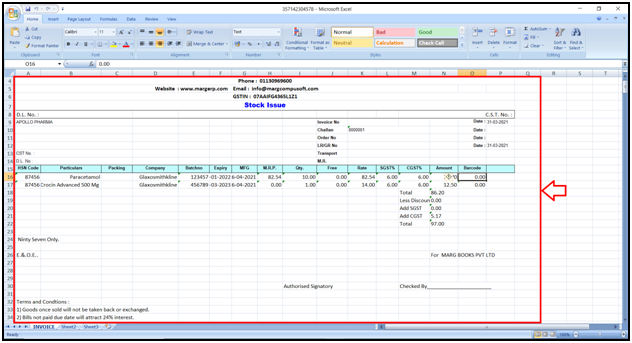
- User can export the Stock Issue Entry in Excel and Pdf Format, the user will select the entry and click on ‘Export’ tab and select "Excel or Pdf" as per the requirement.

- The user can view the stock issue entry will get exported in excel format.
PROCESS TO E-MAIL STOCK ISSUE ENTRY IN MARG BOOKS
- Go to Sale >> Stock Issue.
- A ‘Stock Issue List’ window will appear.
- In order to E-Mail the Stock Issue Entry, the user will select the entry and click on ‘E-Mail’ tab.