


Welcome to  -
Marg Books
-
Marg Books
Home > Marg Books > Stock Transfer > How to remove Expiry Stock from the Marg Books?
How to remove Expiry Stock from the Marg Books?

- Firstly, Go to Stock Management >> Stock Transfer (+).

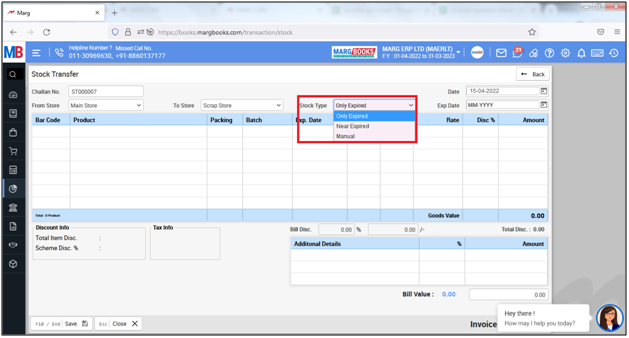
- A 'Stock Transfer' window will appear with few fields.
1. Challan No.: In this field the software will automatically pick the Challan No..
2. From Store: Select the store from which the user needs to transfer the stock. Suppose select 'Main Store'.
3. To Store: Select the store in which the user needs to transfer the stock. Suppose select 'Scrap Store'.

4. Stock Type: option, the user will select stock type as per the requirement.
a. Only Expired: Select, If only expired stock is required to transfer into scrap store.
b. Near Expiry: Select, If only that products which is about to expire is required to transfer into scrap store.
c. Manual: Select ,when the stock required to select manually to transfer in scrap store.
Suppose select 'Only Expired'.
- Now in 'Exp. Date' the user will mention the expiry month & year.

- A 'Select Agency' window will appear.
- The customer can select the company by placing a check mark on it.
- Click on 'Ok'.
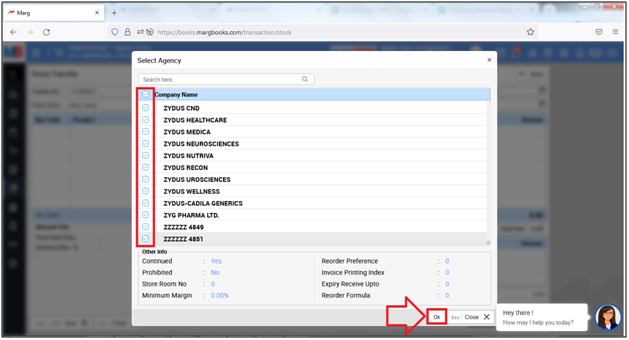
- Now the user can view all expired items of selected companies will get auto loaded.
- Then click on 'Save' to save the transaction.

In this way, the user can remove expiry stock from the Marg Books.









