

Welcome to  -
eBusiness App
-
eBusiness App
Home > Ebusiness App > Credit Limit Management > Marg eDelivery Application
Marg eDelivery Application

Overview of Marg eDelivery Application
Features & Benefits of Marg eDelivery Application
Process of Marg eDelivery Application
OVERVIEW OF MARG eDELIVERY APPLICATION
- Marg ERP has designed a very beneficial Business Application for distributors; Marg eDelivery App to ease the whole delivery process of orders received from different customers or parties as the Deliveryman can easily manage and deliver all their incoming orders on time to their parties.
- Marg eDelivery App helps to save time & efficiency of the Deliveryman by automating the manual work of managing the delivery of the orders.
FEATURES & BENEFITS OF MARG eDELIVERY APPLICATION
1. Active Order Tracking
2. Get Notifications & Alerts
3. View & Manage Order Details
4. Receive Automatic Reminders for Pending Orders
5. Check & Manage Order Delivery Status
6. Reduces Manual Work & Increases Productivity
PROCESS OF MARG eDELIVERY APPLICATION
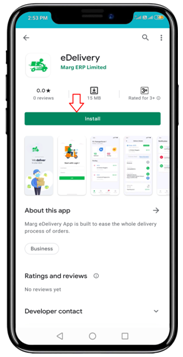
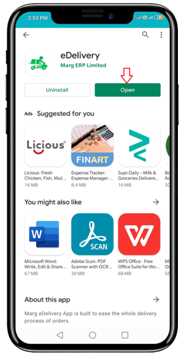
- Firstly, Install & Open Marg eDelivery App from the Playstore.
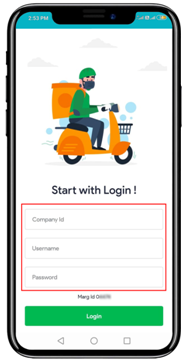
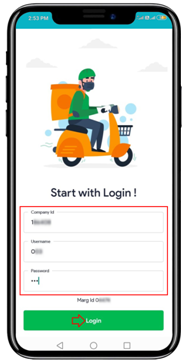
- A ‘Start with Login’ window will appear with few fields i.e. Company ID, Username and Password.
SETTINGS REQUIRED IN MARG ERP SOFTWARE
- Before the deliveryman logins to Marg eDelivery App, the distributor needs to do some settings in the Marg Software. Firstly, update Marg ERP Software with the latest version from the Download page of our official Marg Website i.e. www.margerp.com.
- Go to Masters >> eBusiness Setup.
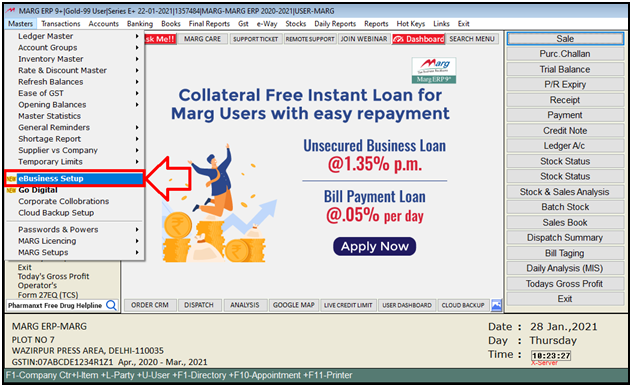
- An ‘eBusiness Setup’ window will appear. Click on ‘Salesman Setup’.
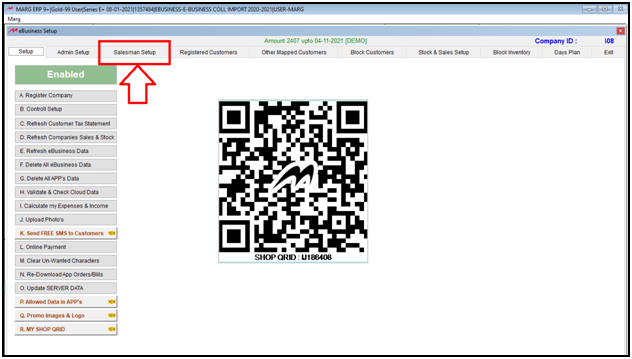
- Under ‘Salesman Setup’ window, the distributor will click on ‘Add’ tab.
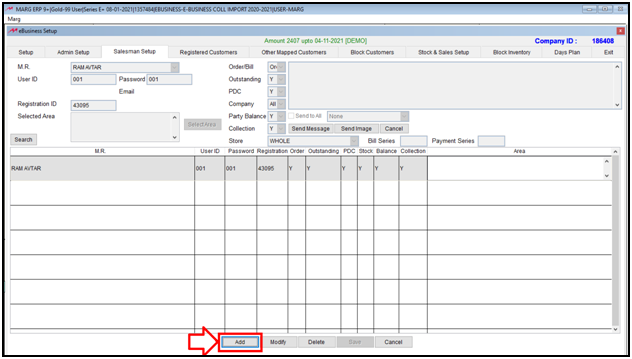
- The different fields in ‘Salesman Setup’ are:
- M.R.: In ‘M.R.’ field, the distributor will select the Marketing Representative (M.R.) from the dropdown as per the requirement.
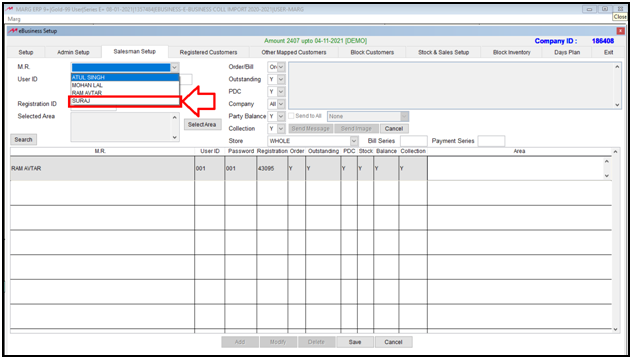
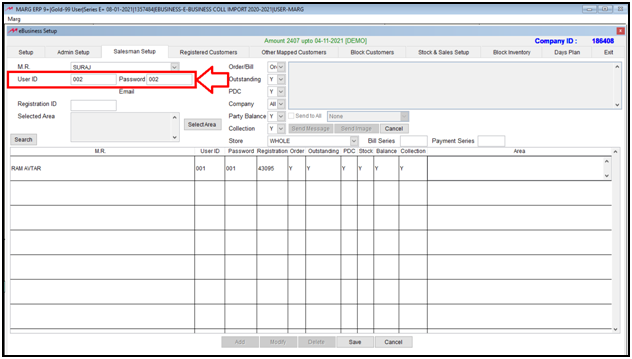
- User ID & Password: Mention the ‘User ID’ & ‘Password’ for the selected M.R.
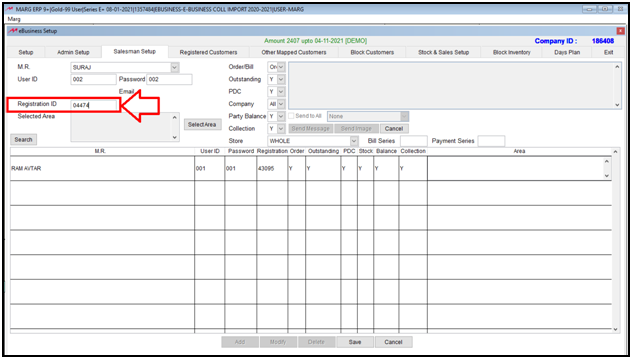
- Registration ID: Mention that Registered ID here which is appearing as ‘Marg ID’ on the ‘Start with Login’ screen of Marge Delivery App.
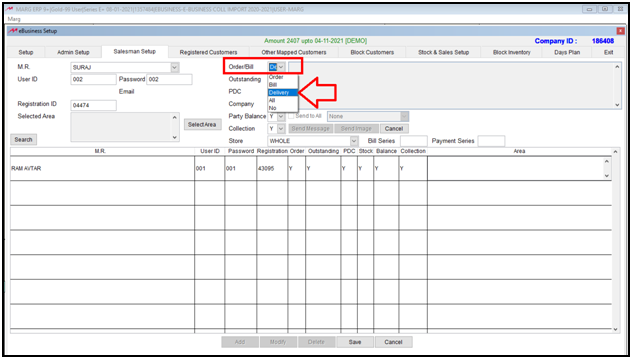
- Order/Bill: Select ‘Delivery’ option from the dropdown of Order/Bill field.
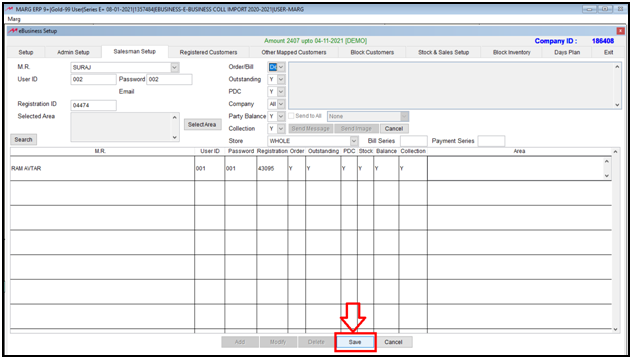
- Click on ‘Save’ and come to the home screen of the software.
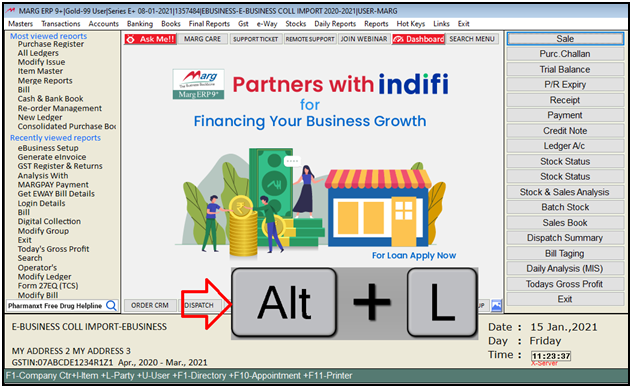
- Now press ‘ALT+L’ key on the home screen of Marg Software.
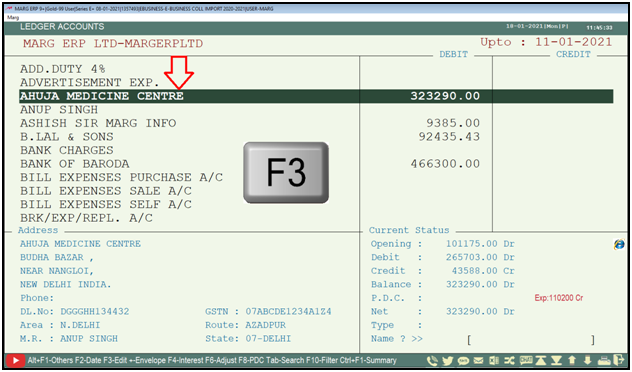
- A ‘Ledgers Accounts’ window will appear.
- Press F3 Key on the ledger of that party for whom the deliveryman needs to be assigned.
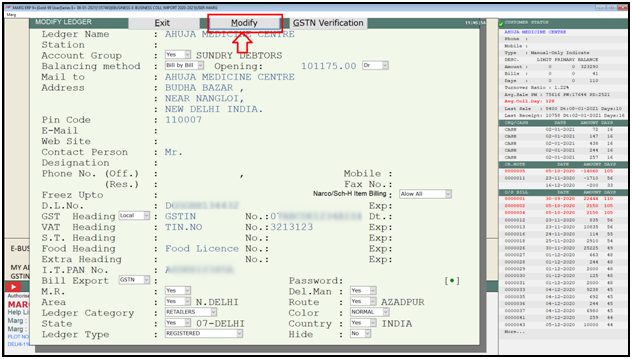
- Then click on ‘Ledger Detail’ option.

- A ‘Modify Ledger’ window will appear. Click on ‘Modify’.
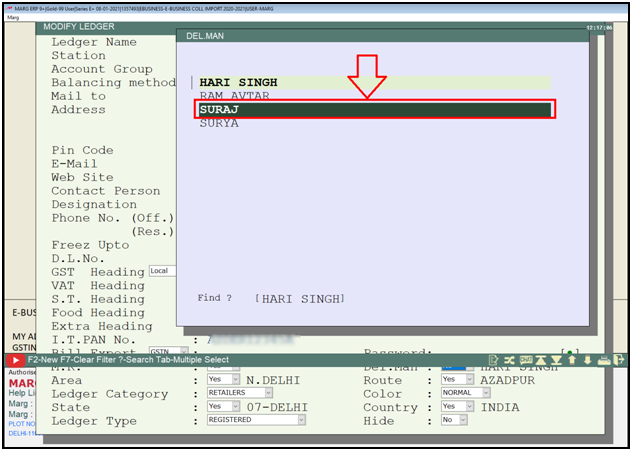
- Now in ‘Deliveryman’ field, the distributor will press ‘N’ key.

- Then a ‘Del. Man’ window will appear in which the distributor will select the Deliveryman for the party as per the requirement.
- Then press ‘CTRL + W’ to save the changes.

- Similarly the distributor will appoint the Deliveryman for whichever parties they require as per the requirement.
WORKING OF MARG eDELIVERY APPLICATION
- After doing the settings in Marg Software, open Marg eDelivery App.
- Mention the Company ID, Username and Password >> Click on ‘Login’.
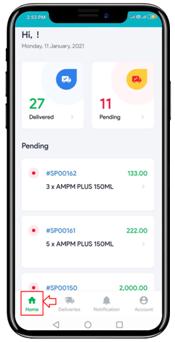
- A ‘Dashboard’ of Marg eDelivery App will appear.
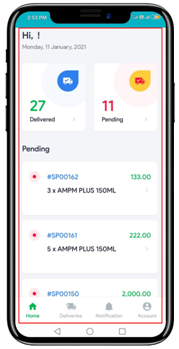
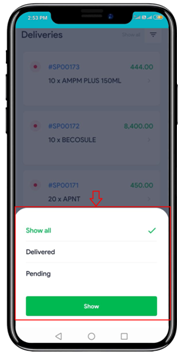
- Delivered: In ‘Delivered’, the deliveryman can view the details of those orders which are been successfully delivered.
- Pending: In ‘Pending’, the deliveryman can view the details of those orders which are to be delivered.
- If the Deliveryman tab on any order from the ‘Pending orders’ then can view the ‘Party’s/Customer’s detail’ along with their ‘Store information’.

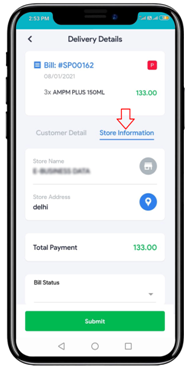
- The Deliveryman can also view the ‘Bill No.’, ‘Items’ to be delivered and the ‘Total Amount’.

- Now if the deliveryman faces any difficulty in reaching at the location i.e. not able to search the address then with Marg eDelivery App, the deliveryman can tab on ‘Map’ icon to track the location and easily reach the destination.
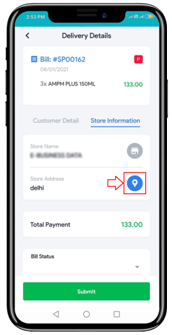
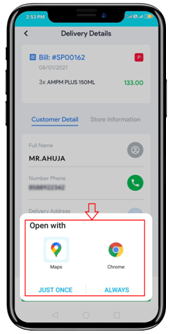
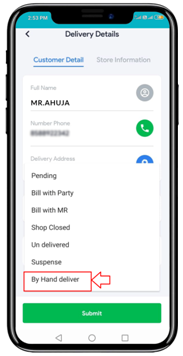
- Bill Status: Here, the deliveryman can select the status of the bill that whether the delivery is been completed or pending for that particular order.
- In case it is pending then select the reason like Suspense (Address not found), Shop Closed etc. as per the requirement.
- And whichever status the deliveryman will select in eDelivery App, the same status will get displayed in the software of the distributor.
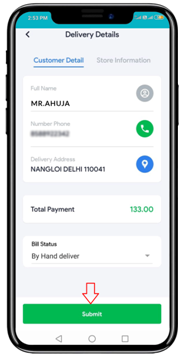
- Suppose select ‘By Hand Delivery’ in ‘Bill Status’ i.e. the deliveryman has successfully handover the order to that particular party/customer.
- Then tab on ‘Submit’.
- Then a confirmation message of ‘You have successfully delivered to the customer’ will appear.
- Click on ‘Confirm’.
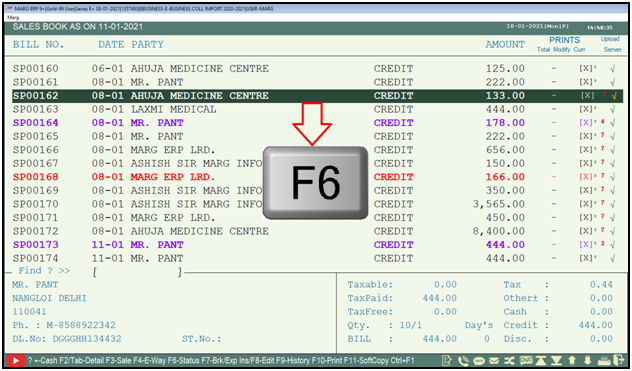
- As the deliveryman will click on confirm then in Marg Software, the distributor can view the status in the Sales Book against that Bill No. according to the updation done by the Deliveryman in the Bill Status field of eDelivery App.
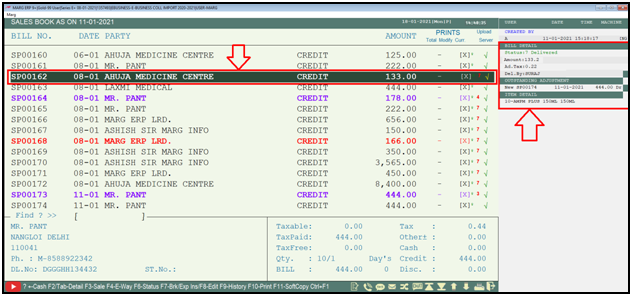
- The distributor can also press ‘F6’ function key to view the details of that particular bill.
- Then a Bill Status window will appear in which the user can view all the details of the selected bill.
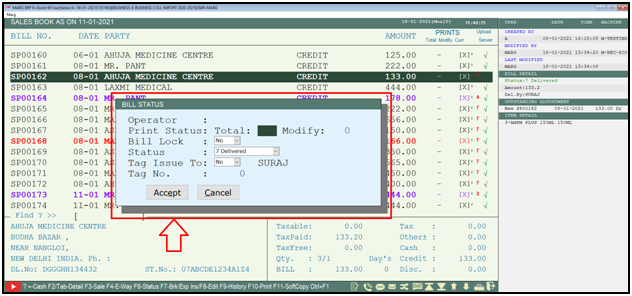
- So in this way, the deliveryman can timely deliver the orders to their parties/customers. And on the other hand, the distributor can also keep a proper track of the status for each and every bill of the deliveryman.
- In Marg eDelivery App, there are few tabs as shown below i.e.:
- Home: Through Home tab, the deliveryman can easily switch to the dashboard of the app.
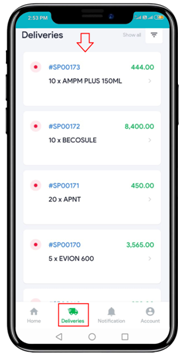
- Deliveries: With Deliveries tab, the deliveryman can view the list of all the Delivered and Pending Orders.
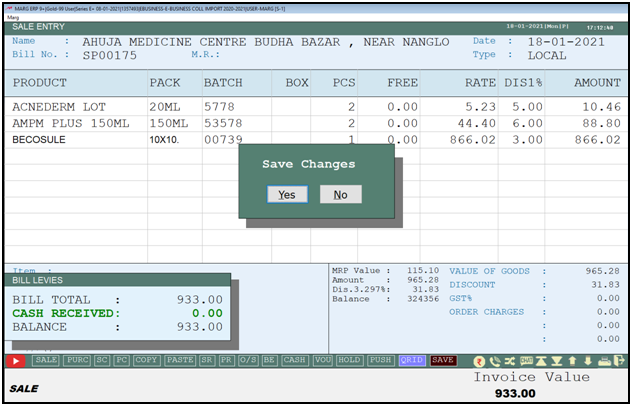
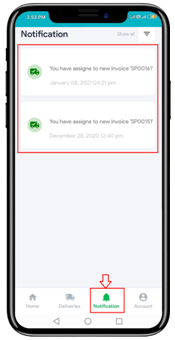
- Notification: The deliveryman will timely receive the notification for all the invoices which needs to be delivered i.e. as and when the distributor receives the order from the party/customer and the invoice is been generated then a notification is been sent to the deliveryman in ‘Notification’ tab of Marg eDelivery App.
- Account: With ‘Account’ tab, the deliveryman can make changes in the profile as per the requirement.








