


Suppose there are 10 items in the software and 5 items on the server, Validate and Check Cloud Data compares both datasets, displays the item count, and shows that the software data is more while the server data is less. It is also useful when data is deleted in the software but not updated on the server due to sync or other issues.
Welcome to  -
eBusiness App
-
eBusiness App
Home > Ebusiness App > General Queries > How to Upload All Data on Server in eBusiness Setup of Marg ERP Software ?
How to Upload All Data on Server in eBusiness Setup of Marg ERP Software ?
Ans.1
In eBusiness, Validate and Check Cloud Data is used to cross-check data between the software and the server.
- Go to Master > eBusiness Setup.

- The user will select 'Validate & Check Cloud Data'.

- Click on 'Check Uploaded Maters & Balance'.

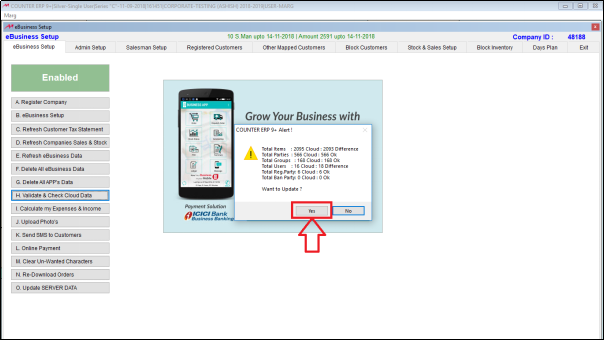
- An Alert window will appear. The user can now view the total items in the software and the number of items uploaded on cloud.
- Like here, there are total 2095 items and 2093 items are uploaded on the cloud so 'Difference' is displayed.
- Now, there are total 566 parties in the software and also 566 parties are uploaded on cloud so as the count is matched then 'Okay' is displayed.

- Click on 'Yes' button.
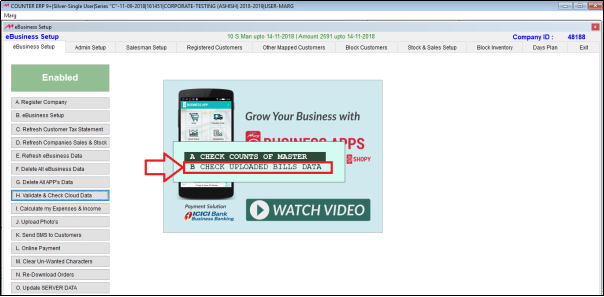
- Now, the user will click on ‘Check Uploaded Bills Data’ to check the uploaded bills.
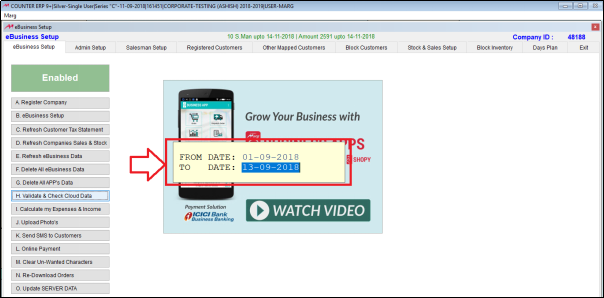
- Enter the from and to dates to specify the period for which the user wants to view the bills.
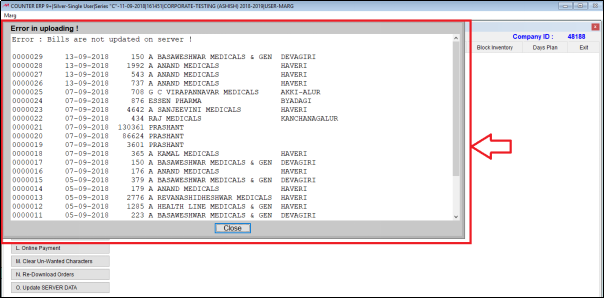
- An 'Error in Uploading!' window will appear where the user can view those bills which are not updated on the server and click on 'Close' button.
- Click on 'Yes'.
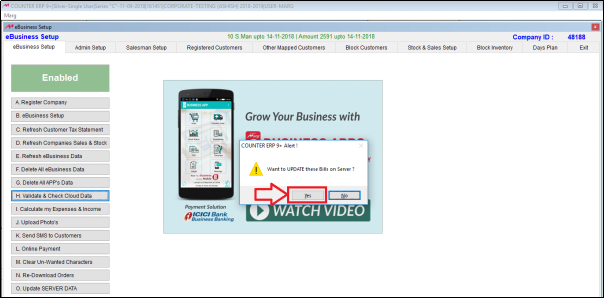
After following the above steps, the user can upload All Data on Server in eBusiness. Setup of Marg ERP Software.








