Welcome to  -
HRXpert
-
HRXpert
Home > Hrxpert > Hr Xpert Software > How to view Employee list in HRXpert Software ?
How to view Employee list in HRXpert Software ?

Overview of Employee List in HRXpert Software
Process of Employee List in HRXpert Software
OVERVIEW OF EMPLOYEE LIST IN HRXPERT SOFTWARE
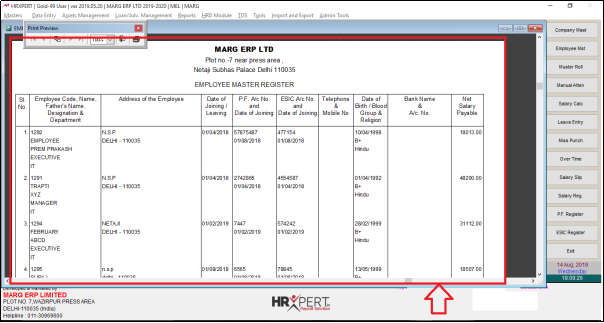
- Employee List option in HRXpert Software enables the employer can view the details of the employees like employee name, fathers name, designation, department, date of joining etc.
PROCESS OF EMPLOYEE LIST IN HRXPERT SOFTWARE
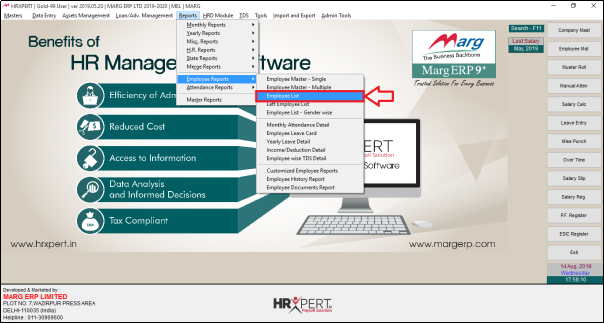
- Go to Reports > Employee Reports > Employee List.
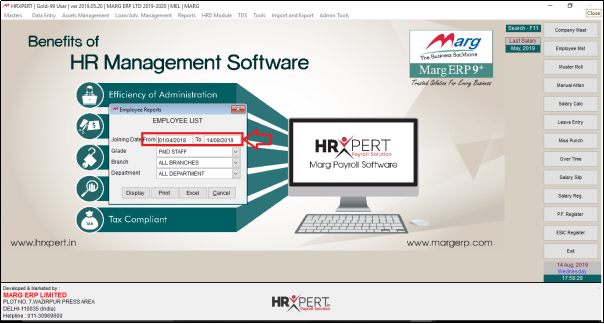
An 'Employee List' window will appear.
a. Joining Date: Set the date range i.e. from which date till which date the employer wants to view the report of the employees who have joined the organisation.
Suppose enter '01/04/2018' and '14/08/2019'.
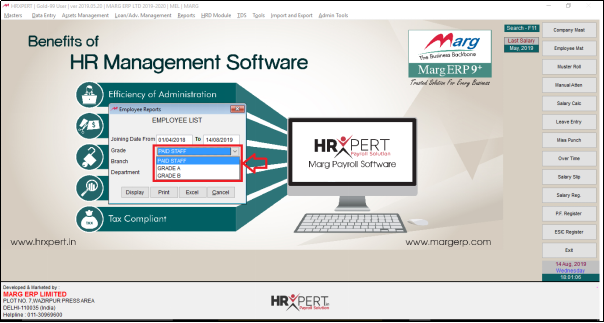
b. Grade: Select the grade of the employees to view their report.
Suppose select ‘Paid Staff’.
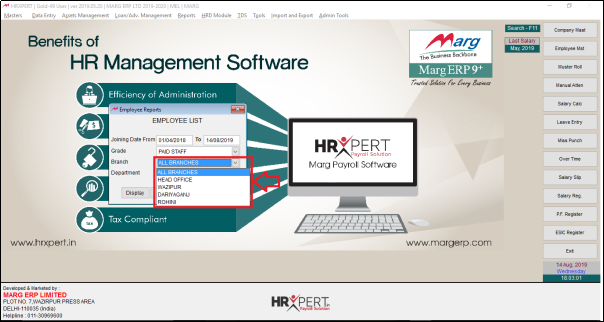
c. Branch: Select the branch of the joined employees to view their report.
Suppose select ‘All branches’.
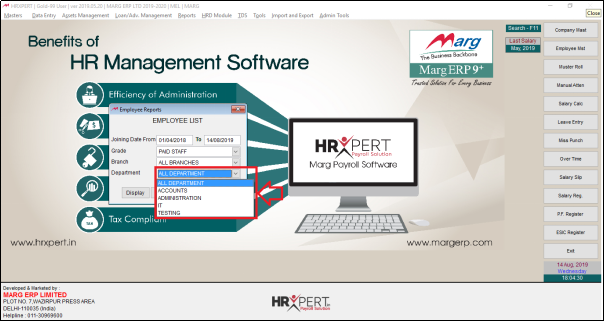
d. Department- Select that particular department to view the employee list.
Suppose select ‘All Department’.
- Now the employer will click on ‘Display/Print/Excel' as per the requirement.
- Suppose click on 'Display'.
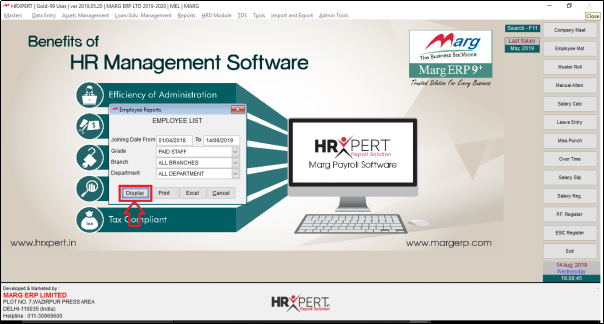
After following the above steps, the employer can view Employee list in HRXpert Software.