Welcome to  -
Marg ERP 9+
-
Marg ERP 9+
Home > Margerp > Outstandingss > How to view Debtor Outstanding report on the bases of Overdue Days in Marg Software?
How to view Debtor Outstanding report on the bases of Overdue Days in Marg Software?

Ans.1
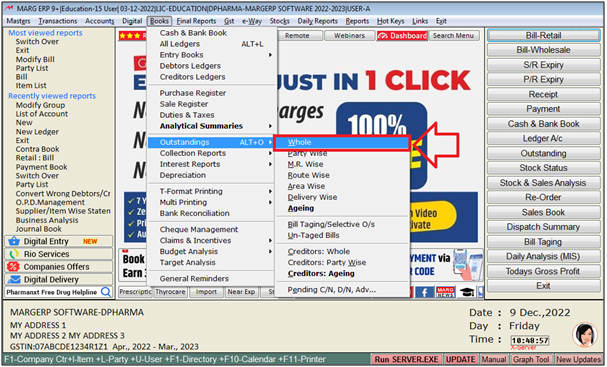
- Go to Books > Outstanding > Whole.
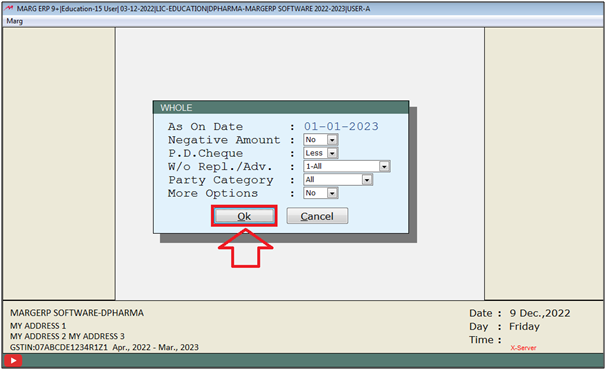
- A 'Whole' window will be appear.
- The user will feed the Date upto which report needs to be view.
- The user will select other options as per the requirement.
- Click on 'Okay'.
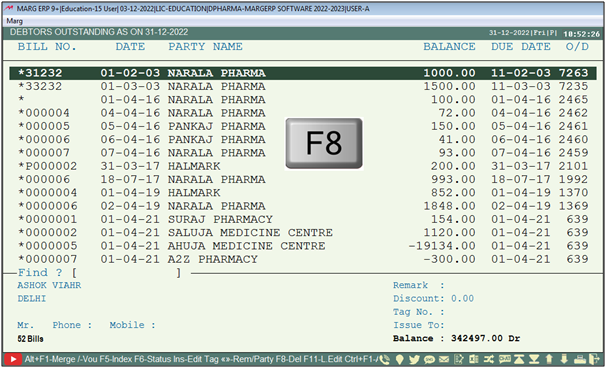
- A 'Debtors Outstanding As On' window will appear.
- The user will press 'F8' key .
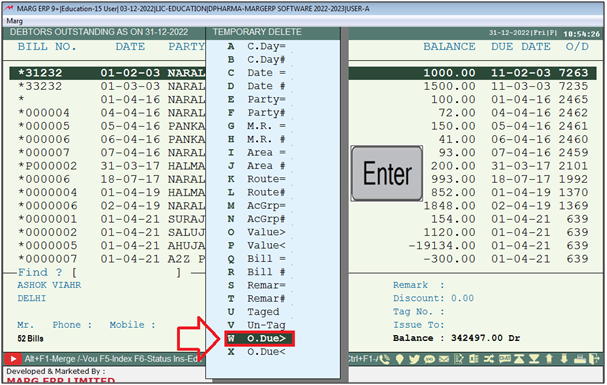
- A 'Temporary Delete' window will appear.
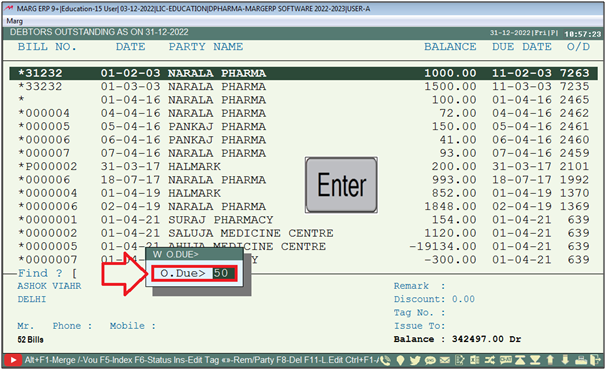
- The user will select 'O.Due>'. Press 'Enter' key.
- A 'W O Due>' window will appear.
- In 'O.Due>' the user will mention the Overdue days.
- Suppose mention '50' and press 'Enter' key.
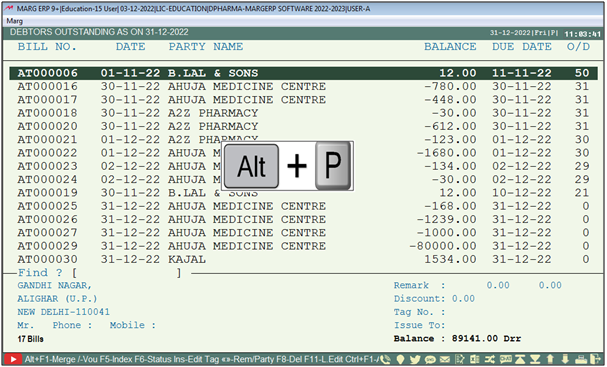
- Now bills will get filter on the bases of the mentioned overdue days.
- The user will press 'Alt+P' key.
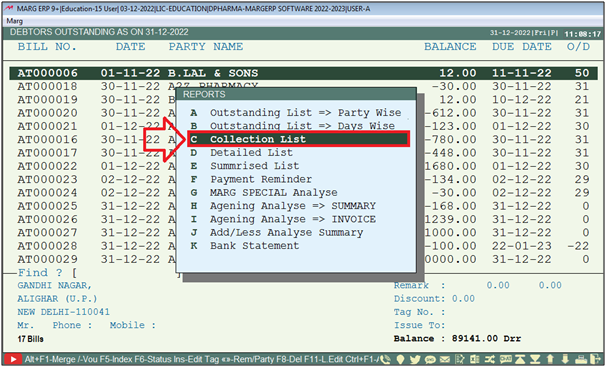
- A 'Reports' window will appear.
- The user will select the option to generate report in different format as per the requirement.
- Suppose select 'Collection List'.
- A 'C Collection List' window will appear.
- The user will select the option as per the requirement.
- Click on View/Print as per the requirement.
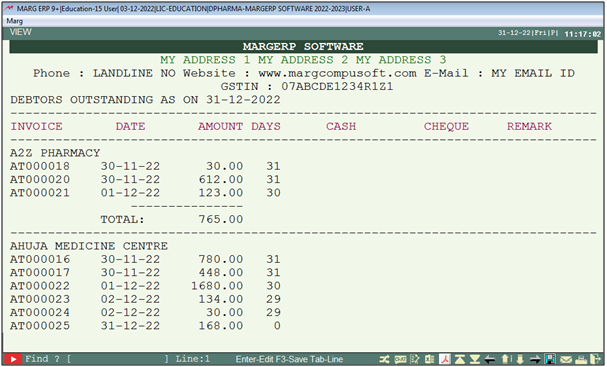
- Suppose click on 'View'.
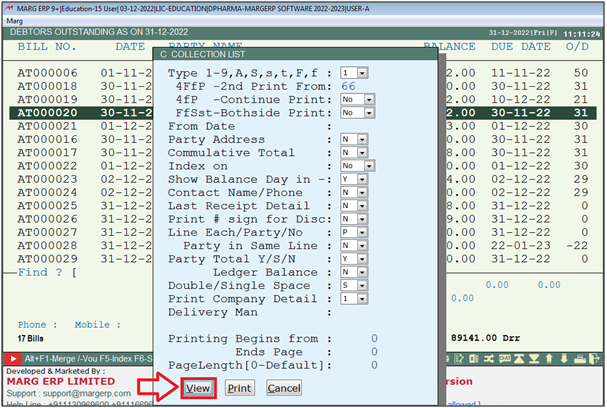
After following the above steps, the user can view Debtor Outstanding report on the bases of Overdue Days.

In This Page