

Welcome to  -
Marg ERP AI+
-
Marg ERP AI+
Home > Margerp > Current Stock > How to generate Current Stock Report in Excel format in Marg ERP Software ?
How to generate Current Stock Report in Excel format in Marg ERP Software ?

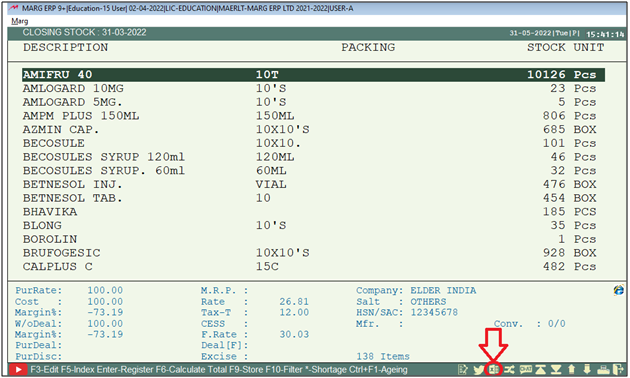
- Go to Stocks > Current Stock.

- The user will click on 'Excel' icon which shows at the bottom of the window.
- The software will display the path, i.e., where exported excel file needs to be saved.
- Click on 'Excel' tab.

After following the above steps, the current stock report will be generated in Excel format in Marg ERP Software.


1. Go to Stocks > Current Stock.
2. The user will press 'Alt+P' key.
3. Then the user will select 'Export to File' option.
4. An 'Export to Excel' window will appear, on which the software will display the path, i.e., where exported Excel needs to be saved.
5. Then click on 'Excel' tab to generate the current stock report in Excel format.
1. Go to Stocks > Current Stock.
2. The user will press 'Alt+P' key.
3. The user will select 'Stock Statement'.
4. In 'Separate Printing', the user will select 'Separate/Summary' as per the requirement and then press 'Page down' key.
5. Then click on the Excel tab to generate the current stock report in Excel format.
After following the above steps, the current stock report will be generated in Excel format in Marg ERP Software.
1. Go to Stocks > Filtered Stock.
2. In 'Stock Status', select 'Whole' or the user can apply the filters as per requirement, then click on 'Accept'.
3. Press 'Alt+P' key and the user will select 'Export to File'.
4. Define the path where the user needs to save the file, then click on 'Excel' to view the file.
After following the above steps, the current stock report will be generated in Excel format in Marg ERP Software.
In This Page









