

Welcome to  -
Marg ERP AI+
-
Marg ERP AI+
Home > Margerp > Expiry Stock > How to view Expiry Stock Report in Marg ERP Software ?
How to view Expiry Stock Report in Marg ERP Software ?

Overview and Introduction to View Expiry Stock Report
Process to view Expiry Stock Report in Marg Software
OVERVIEW AND INTRODUCTION TO VIEW EXPIRY STOCK REPORT
In Marg Software, there is report for Expiry which is Used to get details of that stock which is 'Expired or Waste'. In order to maintain the stock Properly.
PROCESS TO VIEW EXPIRY STOCK REPORT IN MARG SOFTWARE
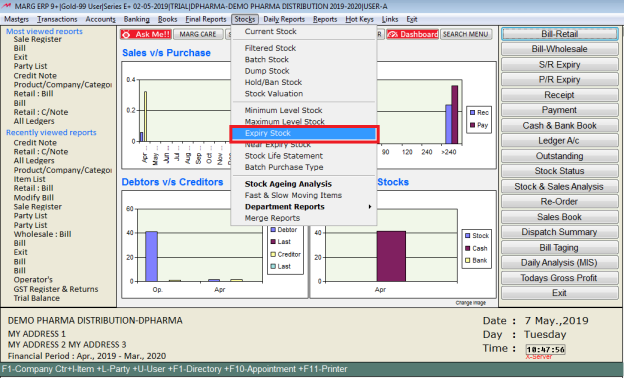
- Go to Stocks > Expiry Stock.
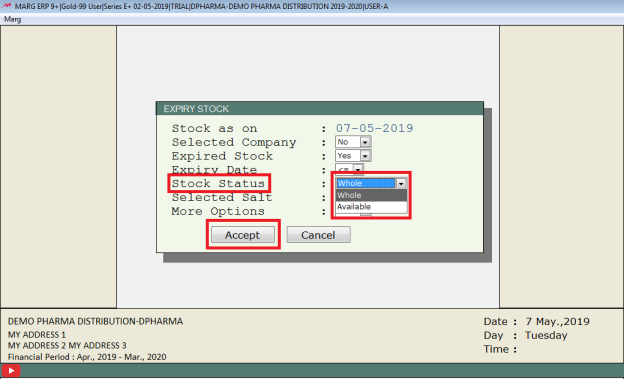
- An 'Expiry Stock' window will appear in which the user will feed the date upto which the user needs to view the expiry stock report.

- After entering the date, the user will set the option Stock status -'Whole'.
- The user will select other options as per the requirement.
- Click on 'Accept' .
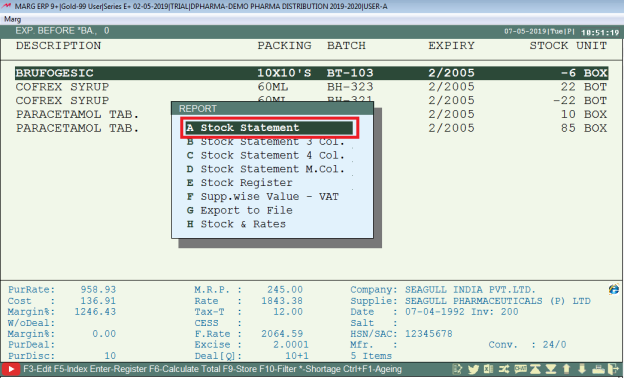
- The selected date expiry stock report will appear, the user will press 'Alt+P' key.

- A 'Report' window will appear.
- The user will select 'Stock Statement’.
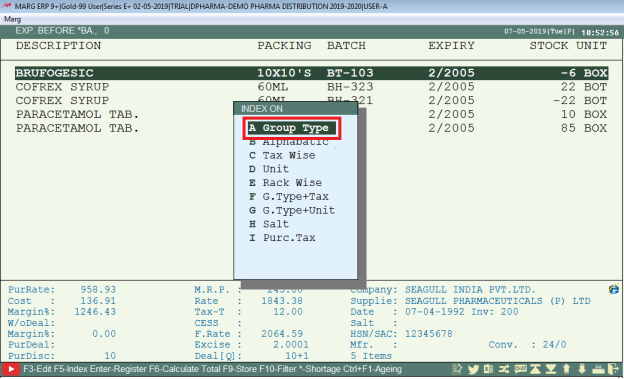
- An 'Index On' window will appear in which the user will select index i.e. Group type, Tax wise etc. as per the requirement.
- Suppose select 'Group Type'.
- A 'Based On' window will appear in which the user will select the option as per the requirement.
- Suppose select 'Company'.
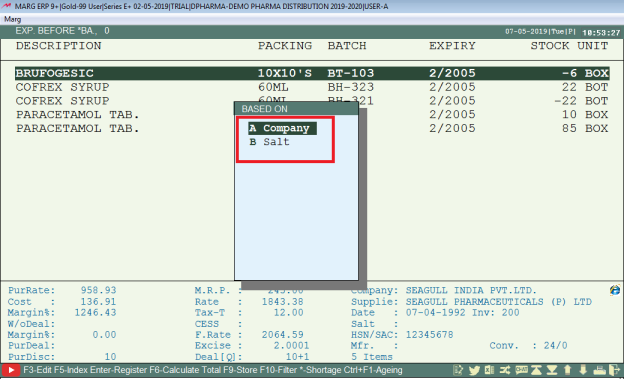
- A 'Company' window will appear on this window in which the user will press 'Enter' key thrice (as shown below).
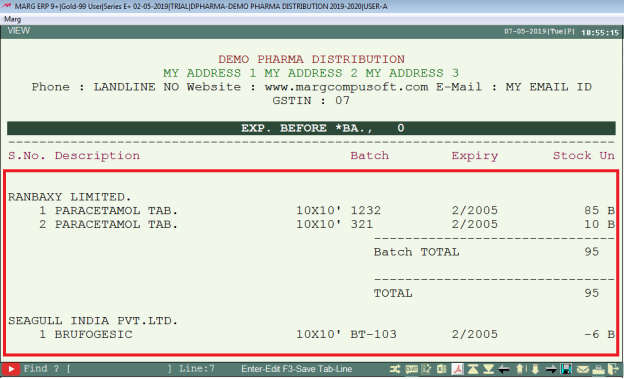
- Then click on View/Excel etc. as per the requirement.
- Suppose select 'View'.

After the following step, the user can view 'Expiry Stock Report' in Marg Software.

1. Go to Daily Reports > Inventory Reports > Near Expiry/Expired Report.
2. A 'Store List' window will appear. The user will press 'Enter' key to select 'Store' as per the requirement.
3. A 'Print' window will appear. The user will select 'Simple List/Columnar List'.
4. A 'Report' window will appear. In 'Report', the user will select 'Exp.Store'.
5. The user will select other option as per the requirement.
6. Click on 'View/Print' as per the requirement.
1. Go to Stocks > Filtered Stock.
2. The user will press 'Enter' key to select 'Store' as per the requirement.
3. The user will select the options as per the requirement.
4. Then user will select Yes on More options.
5. In Expiry date <= user will mention expiry date as per the requirement.
6. Then user will press 'Page Down' key and click on Accept button.
After following above steps user can view expiry report in Marg ERP Software.
In This Page









